How to Set Up Automated PPC Budget Rules: A Step-by-Step Guide for Google Ads

Did you know that automated ppc budget rules can save businesses up to 30% in campaign budget overspending annually?
I’ve seen it firsthand – your advertising dollars can vanish into thin air before you even notice there’s a problem when you don’t have proper PPC budget rules set up. Managing PPC budgets manually isn’t just a time-suck; it’s basically impossible to watch your campaigns 24/7 and jump in quickly enough to stop unnecessary spending.
That’s exactly why automated rules have become a must-have for solid PPC budget management. Instead of constantly checking your campaigns like a nervous parent, you can set up Google Ads automated rules to do the monitoring for you and make adjustments automatically when certain conditions pop up. For example, you could create a rule that pauses those underperforming keywords with a cost per conversion over $20 and at least 100 conversions in the last month.
Sounds good so far? It gets better. These automated systems can spot and respond to weird spending patterns within 15-30 minutes, and with enhanced monitoring, that response time drops to under 10 minutes in most cases. This means your campaigns stay right on track even when you’re catching some z’s or focused on other parts of your business.
In fact, approximately 87% of clients see better ROI after putting Google Ads budget controls in place, with average improvements between 15-25% within just the first three months.
Throughout this guide, I’ll walk you through exactly how to set up these time-saving automated rules for your Google Ads account. Whether you want to stop budget overruns or automatically pump more money into campaigns that are crushing it, you’ll get practical, step-by-step instructions to make it happen. Let’s begin with understanding what these rules actually do.
Understanding Automated Rules in Google Ads
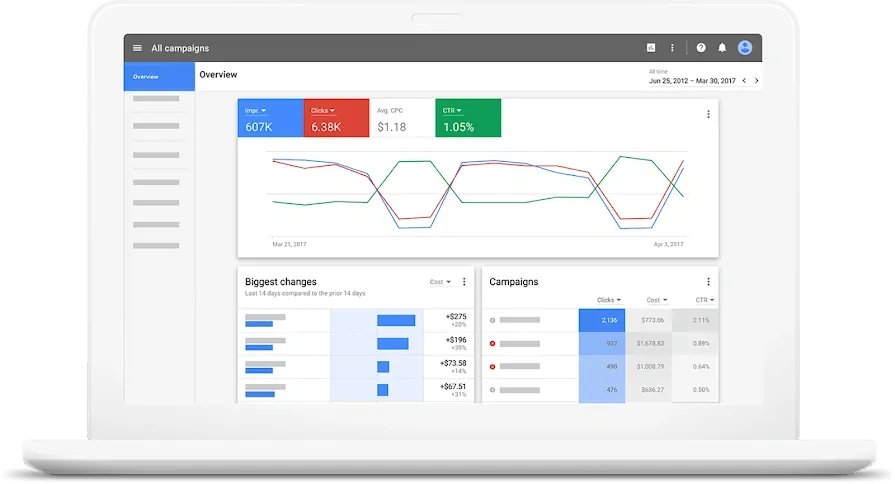
Image Source: Advertising and marketing blog by StoreYa
Automated rules in Google Ads work like your digital assistant, handling all those repetitive tasks without you having to jump in manually every time. I’ve found them super helpful for managing campaign budgets across multiple accounts efficiently. These rules let you schedule changes based on specific conditions that you define.
What automated rules do
At their core, automated rules execute predetermined actions when certain conditions are met. Think of them as “if-then” statements for your PPC campaigns. Instead of logging in every day to make the same adjustments over and over, I can set up rules to watch performance metrics and make changes automatically.
Every Google Ads automated rule has five key parts:
- Action – The specific change you want Google to make (pause campaigns, adjust bids, etc.)
- Apply to – Where the action should take place (specific campaigns or all campaigns)
- Conditions – The requirements that must be met before the action occurs (performance metrics like clicks or cost)
- Frequency – How often Google should check these conditions
- Email results – Options for notification when rules run or make changes
The real beauty here? These rules are incredibly flexible. You can create a rule to make just one change or thousands, scheduled once or multiple times daily. They can be as simple or complex as your campaigns need.
How do they help with PPC budget management
When it comes to PPC budget management, automated rules really shine. First, they prevent overspending by pausing campaigns after reaching daily spending limits. I’ve set up rules that check campaign spend early each morning and automatically pause any campaign that has blown through half its monthly budget.
But that’s just the beginning. These rules are particularly awesome during specific circumstances:
- Weekend adjustments: During weekends, I can automatically cut spend by 80% if my audience is mainly active on weekdays
- Holiday management: Rules can turn campaigns on or off on specific dates without me having to remember
- Monthly budget control: Even though Google Ads has account-level spending limits, rules help me manage individual campaign monthly budgets more precisely
Another feature I love is getting alerts when spending hits certain thresholds. For example, I can create a rule that emails me at noon if any campaign has spent more than $50 that day. This keeps me in the loop without constantly checking the platform.
Where to find them in your Google Ads account
Looking to access automated rules? There are two main ways to get there. The most direct route is through the “Tools and settings” menu in your Google Ads account. Under “Bulk Actions,” just click “Rules”. From this spot, you can see all your existing rules and create new ones.
Alternatively, you can create rules from specific sections of your account, depending on what you want to automate:
- Campaign level: Go to the Campaigns tab, select the campaign, click the 3-dot icon, and choose “Create an automated rule”
- Ad group level: Access from the Ad groups tab to adjust max CPC or ad group status
- Ad text level: Create from the Ads tab to control ad status
- Keywords level: Set from the Keywords tab to adjust bids or keyword status
The level you pick determines what actions are available to you. For instance, campaign-level rules let you control daily budgets and campaign status, while keyword-level rules let you adjust bids and keyword status.
After selecting the right level, you’ll define your conditions, set how often it should run, and decide on email notification preferences. Always remember to preview your rule before saving to understand how it might impact your campaigns. This way, you won’t get any nasty surprises when the rule actually kicks in.
Setting Up Your First Budget Rule
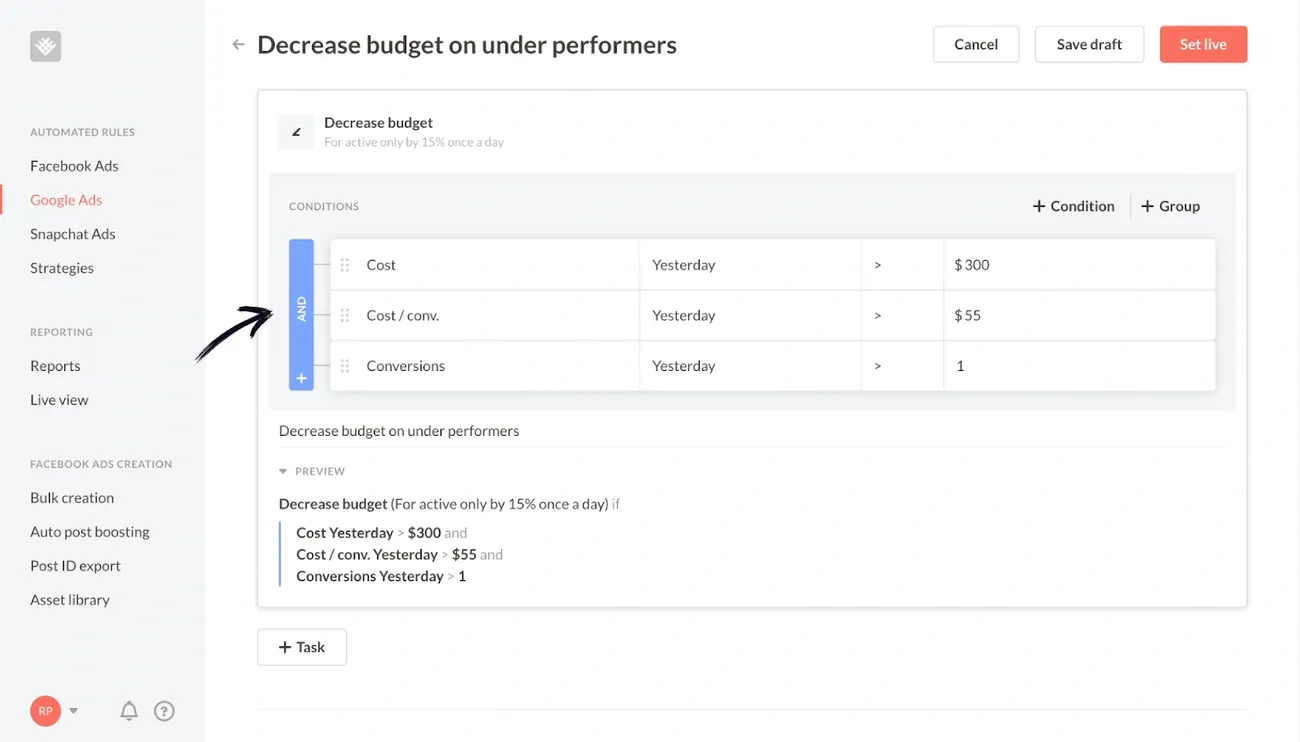
Image Source: Revealbot
Setting up your first Google Ads budget rule might seem a bit scary at first, I get it. But trust me, once you understand the basic steps, it becomes pretty straightforward. Let’s walk through creating an effective automated budget rule that’ll help you keep your campaign spending under control.
Choose the right rule type
First things first – you need to decide what specific action you want to automate. After logging into your Google Ads account, head over to the “Tools and settings” menu, then click on “Rules” under “Bulk Actions”. From there, hit that blue plus button to create your new rule.
Google Ads gives you several rule types to choose from, but for budget management, you’ll mainly want to focus on these three:
- Change budgets: This lets you increase or decrease campaign budgets automatically
- Send email: This alerts you when spending hits certain thresholds
- Pause campaigns: This automatically stops campaigns after they hit budget limits
Each type does something different. I’ve found that “Change budgets” works great for seasonal adjustments, while “Send email” gives me crucial monitoring without actually making any automatic changes to my campaigns.
Define the action and scope
Once you’ve picked your rule type, you need to tell Google exactly what the rule should do and which campaigns it affects. Under “Apply to campaigns,” you can choose options like “All enabled campaigns,” “All enabled and paused campaigns,” or “Select campaigns” to define your rule’s scope.
For the action itself, you’ll need to specify things like:
- Whether to increase/decrease the budget by percentage or a fixed amount
- Any upper budget limits to prevent overspending
- Which specific campaigns should be included or excluded
Be specific here – rules that are too broad can cause unexpected problems. When I first started with automated rules, I focused on a single campaign until I got comfortable with how they performed. You should do the same.
Set conditions based on spend or performance
Conditions are what determine when your rule jumps into action. For budget management, I typically use conditions like:
- Daily cost going over a certain amount
- Performance metrics like CPA, ROAS, or conversion rate
- Click or impression volume
- Day of week or time of day
To create a condition, click the blue “ADD” link in the conditions builder and pick your desired metric. You can combine multiple conditions for fancier rules. For example, I might set something like: “If cost > $50 AND conversion rate < 2%, then decrease budget by 20%.”
One thing to remember – your conditions should be based on enough data. If you set thresholds too low, you might trigger changes before you have statistically significant results. I learned this the hard way!
Select frequency and time range
How often should your rule run? This setting controls both when and how frequently Google checks your conditions and potentially makes changes. Your options include:
- One time: Runs the rule once at a specific date and time
- Daily: Runs every day at your specified hour
- Weekly: Runs on specific days of the week
- Monthly: Runs once per month on your chosen day
Just as important is the “using data from” setting, which determines what timeframe Google looks at when checking your conditions. Using the wrong data windows is a super common mistake – a rule running hourly that’s looking at the previous week’s data will either run 0 or 24 times daily, never just once.
For most of my budget rules, I find that daily frequency using same-day data works well for ongoing management, while weekly rules are better for weekend or weekday-specific adjustments.
Preview and test before saving
Before finalising any rule, always click that “Preview” button to see how it would affect your campaigns if it ran right now. This step is crucial – it helps you spot potential issues before they impact your account.
After that, I recommend these testing best practices:
- Start small with 5-10% adjustments rather than dramatic changes
- Turn on email notifications for all rule runs at first
- Check your rule logs regularly after implementation
- Keep an eye on performance metrics after rules activate to make sure you’re getting the results you want
Once everything looks good, give your rule a descriptive name (include what it does and when it runs), then click “Save rule” to turn it on.
Congratulations! Your first automated PPC budget rule is now up and running, and you’ve taken a big step toward more efficient campaign management. As you get comfortable with these basic rules, you can start implementing more complex automation strategies. Nice work!
Popular Budget Rule Examples to Try
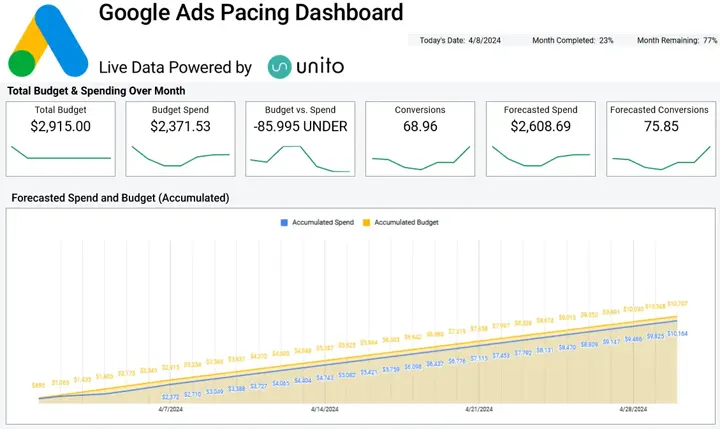
Image Source: Unito
I’ve discovered that some automated budget rules are absolute game-changers for PPC performance. After you’ve got the basics down, these four rule examples have seriously helped me keep my ad budgets in check while maximising results.
Pause campaigns after hitting daily spend
Want to stop overspending dead in its tracks? This is my go-to rule for preventing budget disasters.
By setting up a rule that automatically pauses campaigns once they hit your daily budget cap, you basically eliminate any chance of blowing through your budget. I create mine to check campaign spend every hour and pause any campaign that’s reached its daily limit. This works incredibly well for keeping an account from exceeding predetermined limits, such as $5,000 per week.
For the best results, I recommend setting this rule to run automatically every hour. That way, you catch potential issues before costs spiral out of control. Some of my agency friends using this approach have actually reported reducing overspend to zero.
Increase the budget for high-performing campaigns
Why not give your star performers more runway? I love creating rules that automatically boost daily budgets for campaigns that are crushing it.
You can get fancy with if-then-else statements to increase your daily budget when certain conditions line up just right. For instance, you might tell Google: “Increase budget by 10% when a campaign has:
- ROAS exceeding 500%
- Average CPC is lower than $1.10
- Current daily budget is below $330.00
- Spend utilisation is less than 70%”
This way, your money-makers get more resources automatically, without you having to check in and make manual tweaks all day long.
Send alerts when spending crosses a threshold
Staying in the loop without constantly refreshing your dashboard is key for sanity and success. That’s why I set up email alerts that ping me when specific spending conditions happen.
For example, I have a rule that emails me at noon if I’ve spent more than $50 so far that day. When that notification hits my inbox, I can quickly decide if I need to increase the budget or make other changes.
Setting this up is super simple:
- Select “Send email” as your rule type
- Choose which campaigns to keep an eye on
- Set the condition (Cost > $50)
- Schedule it to run daily at noon using the same-day data
- Give it a name and save
These alerts are lifesavers for preventing your campaigns from throttling later in the day when you might be in meetings or focused elsewhere.
Adjust budget for weekends or holidays
Does your business see totally different performance on weekends versus weekdays? Mine too! That’s where day-of-week budget adjustments come in clutch.
If your weekend performance typically lags behind weekdays, you could create a rule that says: “Allocate a daily budget of $100 if today is Saturday or Sunday. For all other days, set the daily budget to $120.”
The trick here is proper planning. You’ll actually need two complementary rules working together – one that increases the budget when your high-performance period starts and another that decreases it afterward.
With this setup, you maintain a consistent ad presence throughout the week but optimise your spend during the times you know convert best. This same approach works great for holiday adjustments or seasonal trends when your audience’s behaviour shifts predictably.
Avoiding Overspend with Smart Rule Design
Even the best automated budget rules can sometimes go haywire without the right guardrails in place. I’ve learned this lesson the hard way. While these rules are designed to prevent costly mistakes, without proper safeguards, they can occasionally lead to unexpected overspending that’ll make your eyes pop out.
Use caps and limits to prevent runaway spending
Here’s my first rule of thumb: always set minimum and maximum limits as your first line of defence against budget disasters. I never create automated rules without establishing clear boundaries to keep bids and budgets from shooting through the roof.
Google’s automated systems can get a little too enthusiastic when trying to hit your performance targets. Smart Bidding might dramatically increase bids to meet a Target ROAS or Target CPA, potentially inflating your CPCs without actually bringing in more conversions. And let’s be honest – continuously jacking up bids can lead to ridiculously high costs per click, while ongoing decreases might tank your traffic.
My solution? I always implement bid caps within my automated rules. When setting a tCPA or tROAS, I give Google’s algorithm some breathing room – usually a 10-20% margin for flexibility. This approach lets the system optimise effectively without draining your budget dry. This isn’t just my opinion – businesses using these automated rules with proper caps save up to 30% in campaign budget overspending annually.
Combine rules for safety nets
One rule alone isn’t enough. I’ve found that creating multiple complementary rules creates a bulletproof safety system for your PPC budget. But here’s the catch – you need to schedule them carefully since these rules aren’t smart enough to prioritise themselves and will run simultaneously if scheduled at the same time.
I use this three-tiered approach for rule combinations:
- Primary prevention – Rules that adjust budgets based on performance metrics
- Secondary safeguards – Rules that pause campaigns after hitting specific thresholds
- Emergency protocols – Rules that trigger immediately when unusual spending patterns emerge
When I create overlapping rules, I always schedule them at different times throughout the day. This not only prevents conflicts but also creates a natural prioritisation system. Plus, these staggered rules respond more quickly to weird spending patterns, typically within 15-30 minutes.
Monitor rules with email alerts
I get you – nobody wants to be glued to their screen all day watching campaign spend. That’s why I set up automated rules to trigger email alerts when specific spending conditions occur. This keeps me in the loop without having to obsessively check my account.
For example, I create rules that check campaign spend at noon daily and shoot me an email if costs exceed 50% of the daily budget. When I get these notifications, I can quickly decide whether to pump more money into the campaign or make other adjustments before things slow down for the rest of the day.
These alerts serve as an early warning system when rules make big changes to your account. Even when I’m sharing account management with team members, everyone stays in the loop about automatic adjustments. This teamwork prevents confusion when campaigns suddenly start or stop while someone’s sipping margaritas on vacation.
I also recommend logging all rule actions for future analysis. This documentation helps you spot patterns in how your rules behave, which is super helpful for fine-tuning your budget protection strategy over time.
Optimising Rules for Better Performance
Want to take your automated rules from just okay to seriously impressive? Simply setting them up isn’t enough – you’ve got to fine-tune these rules if you want the best possible results over time.
Use longer time windows for conversion-based rules
I learned this one the hard way – setting the right time windows is super important for conversion-based automated rules. Here’s the thing: while clicks or impressions show up right away, conversions often take days after someone interacts with your ad. In my experience, using longer “using data from” time ranges, 14 to 30 days, gives you much more accurate conversion data.
This is especially true for products or services where people need more time to think, like travel packages, insurance policies, or education programs. People don’t just click and buy these things instantly. By using a longer conversion window, you’ll make sure those valuable customers who take their sweet time to convert aren’t missed when your rules check performance.
Think about this real situation: if you’re only looking at a 7-day conversion window, but most of your sales happen 10-15 days after someone clicks your ad, your automated rules might cut budgets for campaigns that are actually doing great work for you.
Refine based on Quality Score or CTR
Quality Score has a direct impact on both where your ads show up and how much you pay per click. I create rules that factor in this metric to seriously boost campaign efficiency. For example, I’ll set up rules that increase budgets for ad groups when their Quality Scores improve, since these ads typically give you more bang for your buck.
Just be careful with CTR-based rules, though. An ad’s position affects its clickthrough rate, so you need to implement these thoughtfully. Otherwise, you might accidentally create a downward spiral where lower positions cause lower CTRs, which trigger more bid reductions, and so on.
Adjust based on seasonal trends
Seasonal patterns can make or break your campaign performance across pretty much every industry. I always review my historical data to spot predictable ups and downs in consumer behaviour that should influence how my automated rules work.
Before big seasonal peaks hit, I modify my rules to:
- Pump up budget allocations during high-demand periods
- Use Google Ads’ seasonality adjustments feature for Smart Bidding
- Create temporary rules that only kick in during specific seasonal events
For example, if you’re in ecommerce, you should aggressively increase budgets before major shopping events like Black Friday. If you wait to react until you’re in the middle of the season, you’ll typically miss out on tons of opportunities.
By adding these optimisation techniques to your toolkit, your automated PPC budget rules become way more sophisticated, responding to what’s actually happening in the real world rather than just reacting to basic triggers.
Best Practices for Managing Automated Rules
Managing automated PPC budget rules needs thoughtful oversight despite their automated nature. I’ve found these rules work best when implemented strategically rather than with a “set it and forget it” mentality. Over time, I’ve developed specific practices that keep my automated rules effective and responsive to changing business conditions.
Start with small changes
When setting up automated rules, I’ve learned the hard way that caution pays off big time. Starting with conservative adjustments, typically just 5-10% changes in bids or budgets, lets you see what happens without putting your campaign performance at risk. This measured approach gives you breathing room to fine-tune before making bigger moves.
Here’s a little trick I use: before finalising any rule, I read it out loud to make sure it actually does what I intended. After that, I always hit that Preview button to see exactly what would happen if the rule ran right now. This extra step has saved me from some potentially expensive mistakes. Think of it as a dress rehearsal before the main show.
Review rule logs regularly
Despite all their automation magic, Google Ads rules aren’t truly “set and forget.” For beginners, I suggest checking rule performance weekly to build confidence in your automation strategy. As you get more comfortable, monthly reviews might be enough, though I still do quarterly audits even after years of experience.
The Version History page is a goldmine of information. It shows exactly when your rules ran and what changes they made, giving you valuable insights without cluttering your inbox with notifications. I use this historical data to spot patterns in how my rules are behaving, which helps me continuously refine my budget protection strategy.
Update rules as your goals evolve
Your business objectives will change over time, and your automated rules should evolve right along with them. I regularly update my rules based on:
- Rising competition levels
- Shifts in my key performance indicators
- Changes in seasonal patterns
- Data on how effective my rules have been
Remember that automation complements your judgment, it doesn’t replace it. While these automated systems work from historical data, they might miss sudden market shifts or strategic opportunities that your human eye would catch. The most successful approach? A smart combination of automated efficiency with your strategic human guidance.
The bottom line is this: your automated rules need regular check-ups to stay healthy. Don’t just set them and forget them, treat them like any other part of your marketing strategy that needs periodic review and refinement. That’s how you’ll get the most value from them.
Final Thoughts on Automating Your PPC Budget
Automated PPC budget rules turn Google Ads management from a constant monitoring headache into something you can actually handle without losing your mind. Throughout this guide, I’ve shown you how these powerful tools can stop your budget from leaking away while maximising how your campaigns perform – all without you needing to stare at your screen 24/7. Trust me, properly implemented rules make the difference between campaigns that haemorrhage money versus those that keep humming along profitably.
I get it – setting up your first rule might feel a bit scary. I was hesitant when I first started too. But the process gets way easier once you grasp the basics: picking the right rule type, defining what you want it to do, setting up solid performance conditions, and choosing how often it should run. Smart rule design is your best defence against budget disasters, especially when you add spending caps and create complementary rules that work together as a safety net.
That said, don’t fall into the “set it and forget it” trap. Your automated rules need some TLC now and then. Start small with conservative changes (like 5-10% adjustments) rather than dramatic swings. Check your rule logs regularly to spot patterns and find ways to make things better. As your business changes, your rules should too, particularly for seasonal trends and the performance metrics that actually matter to your bottom line.
The proof is in the pudding – small businesses and agencies typically see 15-25% ROI improvements within just three months after setting up proper Google Ads budget controls. This strategic approach to PPC management delivers exactly what you want: better results with less effort and way less risk of blowing your budget.
Think of automated rules as your digital marketing sidekick – always on alert, never needing a coffee break, but still guided by your strategic brain. Before long, you’ll be scratching your head wondering how you ever managed campaigns without them.
Which automated rules do you think will help your campaigns the most? Try setting up one rule this week and see what happens – I bet you’ll be surprised at the difference it makes!
FAQs
Q1. How do automated rules help manage PPC budgets in Google Ads?
Automated rules in Google Ads act as digital assistants, performing routine tasks without constant manual intervention. They can prevent overspending by pausing campaigns after reaching daily limits, adjust budgets for high-performing campaigns, and send alerts when spending crosses thresholds. This helps advertisers maintain better control over their PPC budgets and improve campaign efficiency.
Q2. What are some popular budget rule examples to try in Google Ads?
Some effective budget rules include: pausing campaigns after hitting daily spend limits, increasing budgets for high-performing campaigns, sending email alerts when spend crosses a threshold, and adjusting budgets for weekends or holidays. These rules help optimize campaign performance and prevent overspending.
Q3. How can I avoid overspending when using automated rules in Google Ads?
To prevent overspending, use caps and limits in your rules to set maximum thresholds. Combine multiple complementary rules to create a comprehensive safety system. Also, set up email alerts to monitor rule actions and be notified of significant changes. This multi-layered approach helps maintain budget control while using automation.
Q4. What are some best practices for managing automated rules in Google Ads?
Start with small, conservative changes (5-10%) when implementing new rules. Regularly review rule logs to understand their impact and effectiveness. Update your rules as your business goals evolve and in response to seasonal trends or changes in key performance indicators. Remember that automation should complement, not replace, human strategic oversight.
Q5. How much can automated PPC budget rules improve campaign performance?
Businesses implementing Google Ads budget controls often see ROI improvements of 15-25% within the first three months. Automated rules can help save up to 30% in campaign budget overspending annually. These improvements come from more efficient budget allocation, quicker responses to performance changes, and reduced risk of overspending.

Runs paid acquisition across Google, LinkedIn, and Meta for B2B pipeline.